Screens below come from the bank’s official guides. They may show example amounts or switches turned off. Follow the written steps for Cashflow’s settings. Tap a screen to view it at full size.
Enable card transaction e-Alerts
Step 1.1
Find card e-Alerts
Sign in. Follow More → Profile & app settings → Manage Notifications → e-Alerts → Card transactions. Alternatively, use the bell icon, then the settings gear.
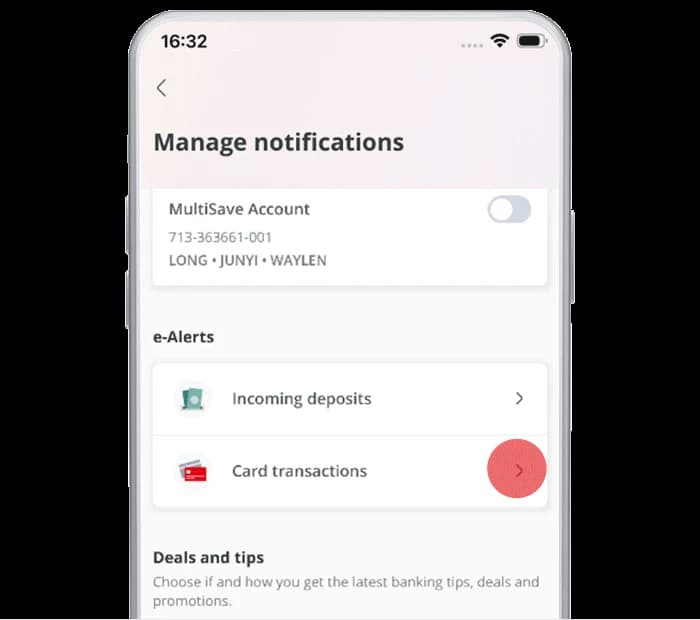
Official OCBC app screen. Source (opens in a new tab) Step 1.2
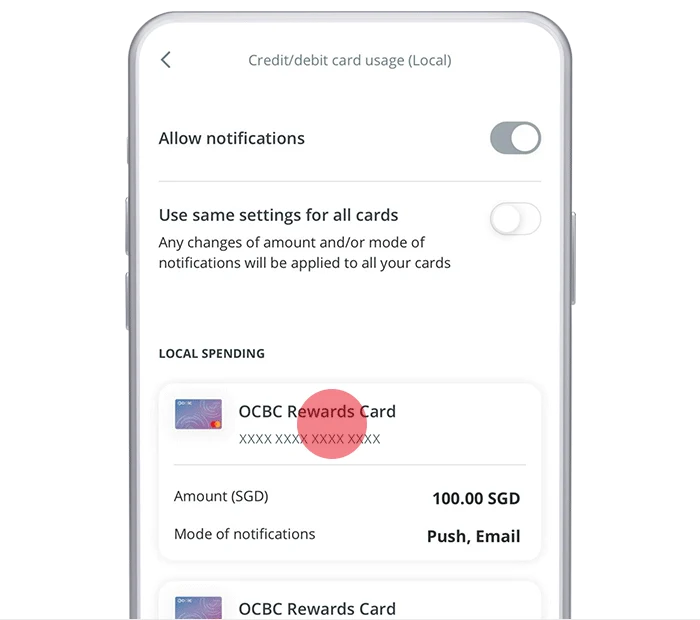
Enable card usage alerts
Choose Credit/Debit card usage. Turn on Allow notifications and select a card, or apply the settings to all cards.
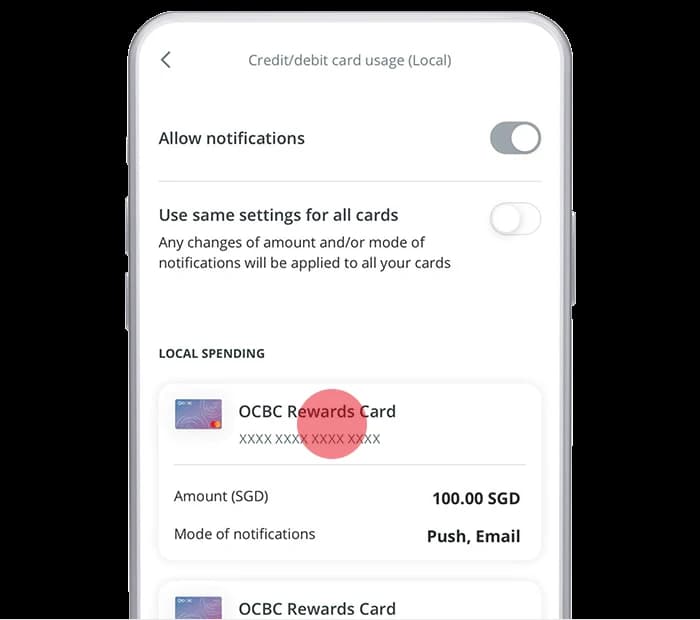
Official OCBC app screen. Source (opens in a new tab) Step 1.3
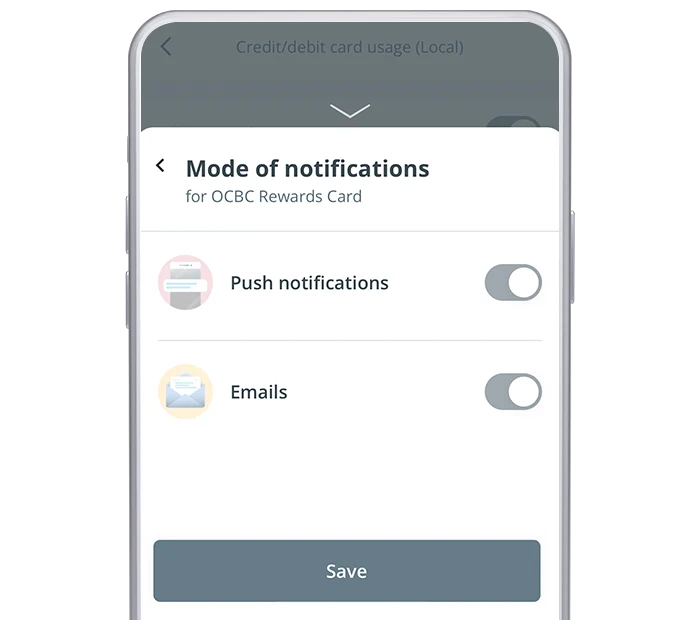
Set S$0.01 and include email
Choose S$0.01 as the threshold. Keep Emails enabled in the notification modes, alongside push if registered; otherwise select Email. Save and authorise with OneToken or the OTP method shown.
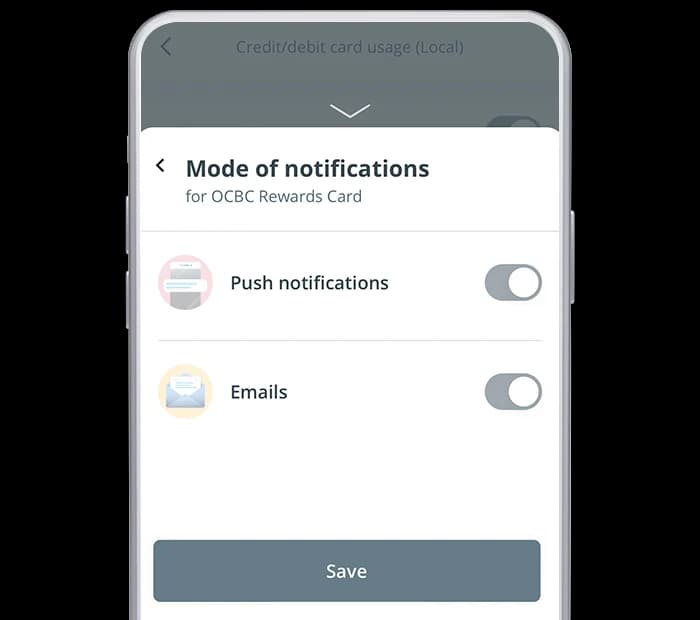
Turn Emails on; the bank’s example image shows the available switches. Source (opens in a new tab)
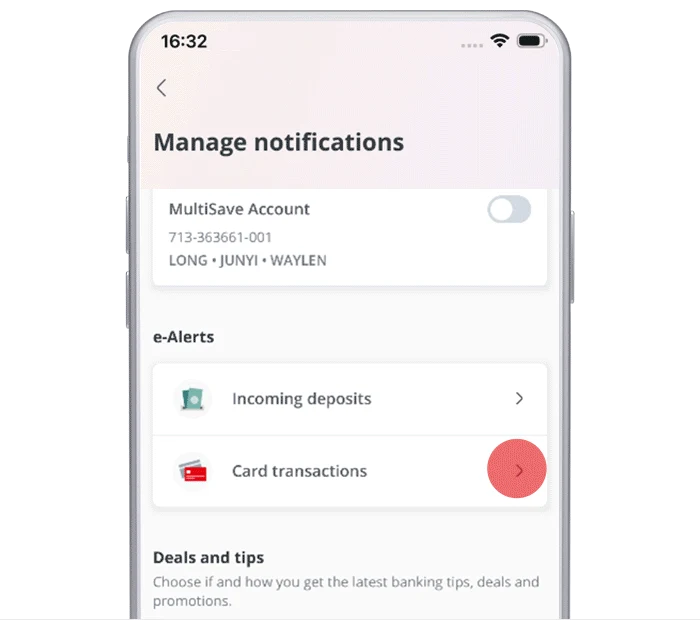
Enable incoming deposit e-Alerts
Do this separately if you track an OCBC bank account in Cashflow.
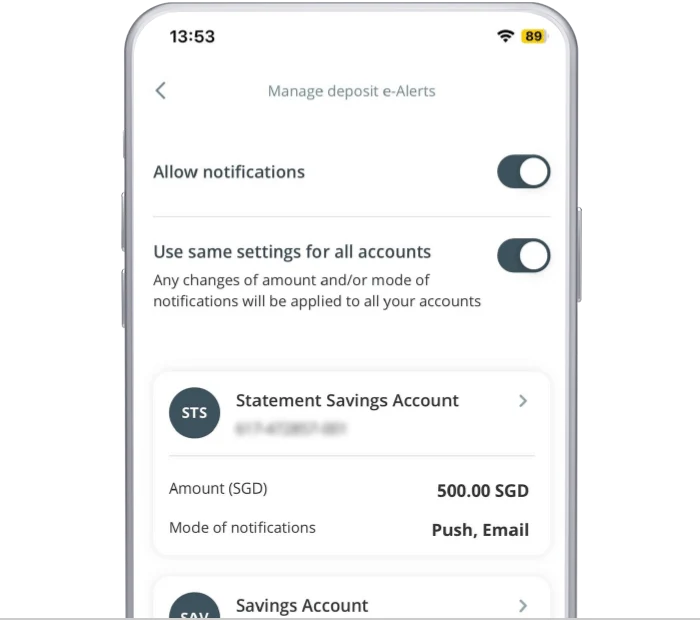
Step 2.1
Select Incoming Deposits
Return to e-Alerts and open Incoming Deposits. Enable Allow notifications. Select your account, or apply to all accounts.
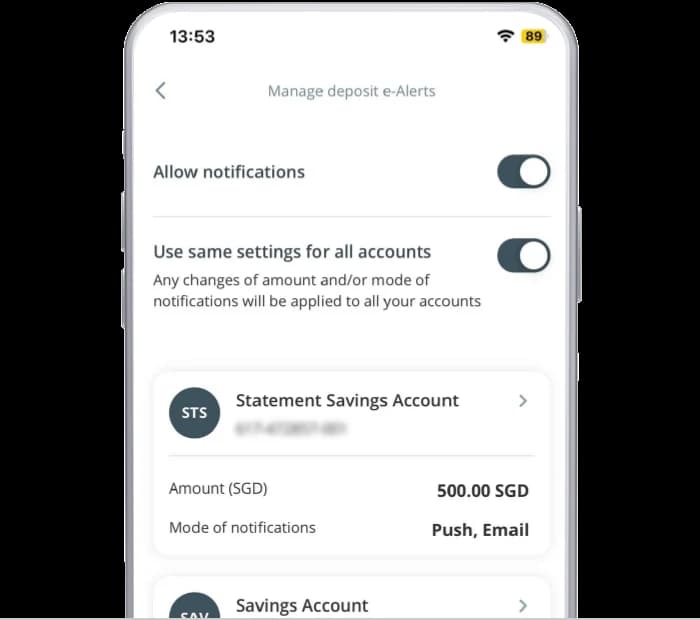
Official OCBC app screen. Source (opens in a new tab) Step 2.2
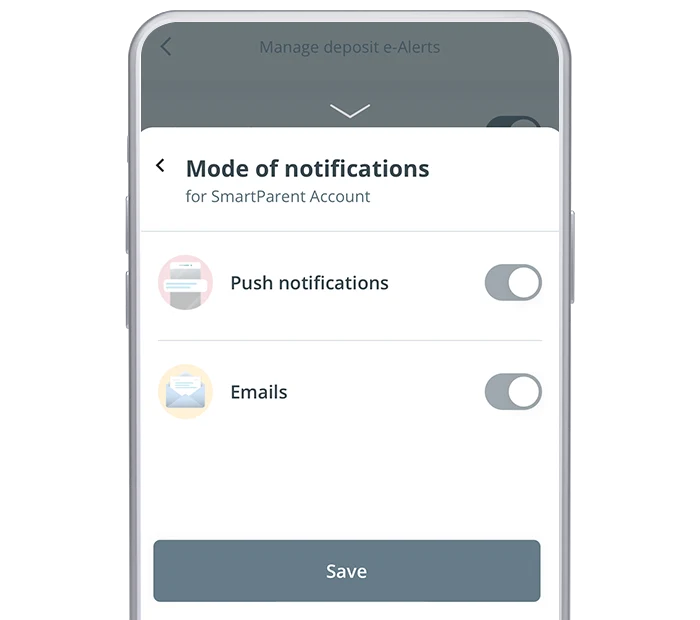
Lower the threshold and enable email
Select S$0.01 if available, or the lowest offered deposit threshold. Include Email in the delivery modes, then save and complete the authentication shown.
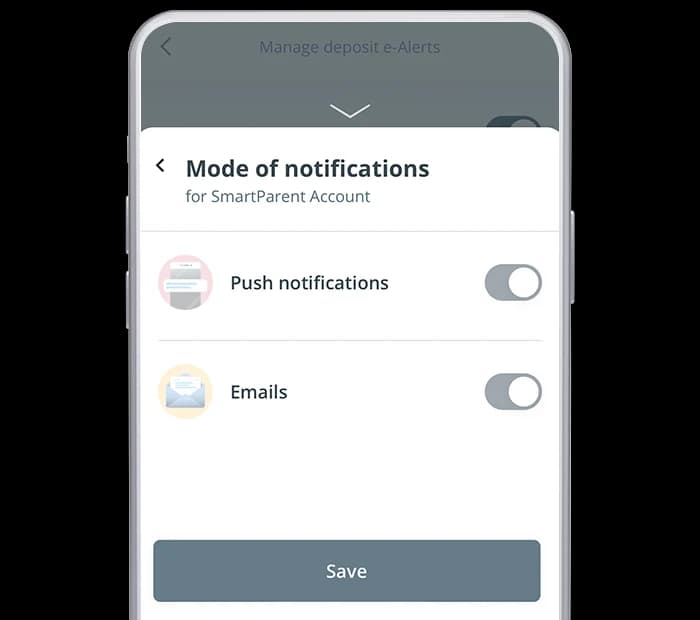
Official OCBC app screen. Source (opens in a new tab)
Check outgoing payments and other activity
Step 3.1
Keep outgoing payment alerts on
Review outgoing online banking payment and transfer alerts too. Their S$0.01 threshold is fixed. Select email where supported. Check ATM and other card alert types separately if you use them.
Coverage & limitations
- OCBC lists overseas card usage, overseas ATM withdrawals, and ATM funds transfers or bill payments as SMS-only alerts. Cashflow cannot read SMS, so these alerts may leave gaps in tracking.
- OCBC describes configurable alerts as firing when a transaction exceeds the threshold. Selecting S$0.01 does not guarantee an alert for a transaction of exactly one cent.
Cashflow can only track activity for which it receives a supported transaction email. A lower threshold does not guarantee that the bank emails every transaction. Review statements for activity without emails.
Check your setup
After the settings take effect, use your next normal small purchase to check the whole journey. You do not need to make a one-cent test payment.
- Confirm email is enabled for each relevant card, account and transaction type, with the lowest supported threshold saved.
- Find the new transaction email in the Gmail account connected to Cashflow. Check Spam and All Mail if it is missing; a settings confirmation email is not a transaction alert.
- Open Cashflow, confirm the same Gmail account is connected and the relevant card or bank account has been added, then check whether the transaction appears after email processing.
I get push notifications, but no email
Recheck the bank’s registered email address and the delivery mode for that exact transaction type. Review the coverage notes above. If the bank sends only push or SMS for it, Cashflow cannot read that alert through Gmail. Ask your bank whether an email option is available.
The email arrived, but the transaction is missing
Check that Cashflow is connected to the Gmail account receiving the email and that the matching card or account is added. Give the email time to be processed, then check again. If it remains missing, contact Cashflow support from the app.
The app looks different, or S$0.01 is unavailable
Update your banking app and use the official references below for the latest menu names. Choose the lowest supported amount. Some thresholds are fixed or have a higher minimum. Ask your bank about the alert type you need; do not change payment or transfer limits to adjust notification amounts.
Official references
- OCBC: manage card e-Alerts (opens in a new tab)
- OCBC: manage deposit e-Alerts (opens in a new tab)
- OCBC: notification channels and available thresholds (opens in a new tab)
App screenshots © their respective banks, reproduced from the linked official guides. Settings and availability may change. This independent Cashflow guide is not endorsed by OCBC.